‏إظهار الرسائل ذات التسميات flash oppo. إظهار كافة الرسائل

الاثنين، 18 ديسمبر 2017

How to Flash Stock ROM on Android OPPO Neo 7 to Fix a Bootloop, Stuck, Removing Malware [Guide].

How to Flash Stock ROM on Android OPPO Neo 7 to Fix a Bootloop, Stuck, Removing Malware [Guide].

Flash Stock ROM on Android OPPO Neo 7. This guide will help you to Flash Stock ROM on Android OPPO Neo 7 Smartphone. By flashing your Android phone you can get something new on your phone, such as new experience to use latest update of Stock ROM, or new installed Stock ROM after your phone died or bootloop, and much more. Before we proceed to flash this Android OPPO Neo 7 Smartphone, let we know what is detail specification of this Android smartphone.OPPO Neo 7 was released On 2015, October. And OPPO Neo 7 is the smartphone that comes with IPS LCD capacitive touchscreen, 16M colors, LCD 5.0 Inches, Use Android OS, v5.1 (Lollipop) - Color OS 2.1 as it Operating System and supported with Mediatek MT6582 - 3G model Chipset, Quad-core 1.3 GHz Cortex-A7 - 3G model CPU, GPU Adreno 306, combined with 1 GB of RAM as their engine. And you can enjoy exciting 8MP on main camera, and 5 MP on secondary camera.

Now, we start to flash Stock ROM on Android OPPO Neo 7 Smartphone. Just follow this guide below carefully. take your own risk, a damage or broken phone by following this tutorial is not our responsibility. 

Guide Flash Stock ROM OPPO Neo 7.

Before you flash OPPO Neo 7 you must read this instruction carefully, so. you can get best result at the end of your flash.

Preparation.

  1. Make sure you have enough battery capacity on your OPPO Neo 7. It's recomended you have at least 80% of battery capacity.
  2. Always backup your important file (contact, music, video, app) that stored on OPPO Neo 7
    • To backup contact you can read this 
    • http://guidebelajar.blogspot.com/2015/09/guide-how-to-backup-android-contact-to.html
    • To backup your SMS, read this 
    • http://guidebelajar.blogspot.com/2015/05/guide-to-backup-and-restore-sms-on.html
  3. Prepare the Memory Card / SD Card which has a V-Gen Brand. For some reason OPPO Neo 7 does not recognized besides V-Gen Memory card.
  4. Then download OPPO Neo 7 Stock ROM.
    • OPPO Neo 7 Stock ROM.
    • https://link.safelinkconverter.com/?id=aHR0cDovL2Rvd25sb2Fkcy5vcHBvLmNvbS5zMy5hbWF6b25hd3MuY29tL2Zpcm13YXJlL0EzM3cvQTMzd0VYXzExX09UQV8wMDZfYWxsXzIwMTUxMjEwMjIxNC56aXA=&c=0&user=47564 
  5. Once download finish, now copy Stock ROM from computer to the phone memory or SD Card. but note that you copy this ROM at outside not to the public folder for easy finding. (if you download ROM Via PC)
  6. But, Stock ROM can be download directly from yourAndroid phone. And you must have a good  and stable internet connection for it, such as Wi-Fi connection.
  7. Rom download directly from the Android phone located in the File Manager / phone / download.

Flashing Stock ROM.

  1. To start flashing Stock ROM on OPPO Neo 7 you must enter Recovery Mode. how to do it ?
    • Press and Hold Power Button + Volume Down.
  2. Then you will see menu like this picture. You can select English
  3. Flash Bootloop OPPO Neo 7
    Flash Bootloop OPPO Neo 7
  4. Then you will enter ColosOS Recovery.
    Flash Bootloop OPPO
    Flash Bootloop OPPO
  5. Select Wipe data and cache by pressing the power button. for Up and down choice, use the volume keys Up / Down, on the next Popup screen select Wipe your data cache to make faster process.
  6. Flash Bootloop OPPO Neo 7
    Flash Bootloop OPPO Neo 7
  7. If appears confirmation you can select : "YES"
  8. Flash Bootloop OPPO Neo 7
    Flash Bootloop OPPO Neo 7
  9. Then you will bring to previous menu, and you can select Install form sd.
  10. Flash Bootloop OPPO Neo 7
    Flash Bootloop OPPO Neo 7
  11. Now you will see 2 options. From mobile phone storage & form SD,.
  12. Flash Bootloop OPPO Neo 7
    Flash Bootloop OPPO Neo 7
  13. Previously you have copy firmware file on SD Card, So. now you must select From SD. and now you can see your Firmware file name on this screen.(Stock rom name is similar as shown on the picture below)
  14. Flash Bootloop OPPO Neo 7
    Flash Bootloop OPPO Neo 7
  15. Select this file name using Power Button
  16. For Up or Down navigation you can use volume Up and Down Button.
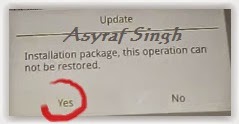
  17. Then you will see a confirmation page, and you can select yes to proceed this flash on OPPO Neo 7
  18. Flash Bootloop OPPO Neo 7
    Flash Bootloop OPPO Neo 7
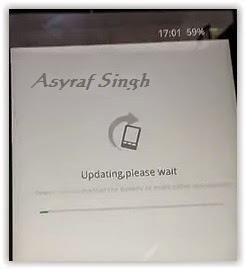
  19. Just wait the process finish updating system, and your OPPO Neo 7 will ask to you to reboot the device.
  20. Flash Bootloop OPPO Neo 7
    Flash Bootloop OPPO Neo 7
  21. Now you have finished flash Stock ROM on Android OPPO Neo 7 Smartphone.

How to Flash Stock ROM on Android OPPO Mirror 5 to Fix a Bootloop, Stuck, Removing Malware [Guide].

How to Flash Stock ROM on Android OPPO Mirror 5 to Fix a Bootloop, Stuck, Removing Malware [Guide].

Flash Stock ROM on Android OPPO Mirror 5. This guide will help you to Flash Stock ROM on Android OPPO Mirror 5 Smartphone. By flashing your Android phone you can get something new on your phone, such as new experience to use latest update of Stock ROM, or new installed Stock ROM after your phone died or bootloop, and much more. Before we proceed to flash this Android OPPO Mirror 5 Smartphone, let we know what is detail specification of this Android smartphone.OPPO Mirror 5 was released On 2015, July. And OPPO Mirror 5 is the smartphone that comes with IPS LCD capacitive touchscreen, 16M colors, LCD 5.0 Inches, Use Android OS, v5.1 (Lollipop) as it Operating System and supported with Qualcomm MSM8916 Snapdragon 410 chipset, Quad-core 1.2 GHz Cortex-A53 CPU, GPU Adreno 306, combined with 2 GB of RAM as their engine. And you can enjoy exciting 8 MP on main camera, and 5 MP on secondary camera.

Now, we start to flash Stock ROM on Android OPPO Mirror 5 Smartphone. Just follow this guide below carefully. take your own risk, a damage or broken phone by following this tutorial is not our responsibility. 

Guide Flash Stock ROM OPPO Mirror 5.

Before you flash OPPO Mirror 5 you must read this instruction carefully, so. you can get best result at the end of your flash.

Preparation.

  1. Make sure you have enough battery capacity on your OPPO Mirror 5. It's recomended you have at least 80% of battery capacity.
  2. Always backup your important file (contact, music, video, app) that stored on OPPO Mirror 5
    • To backup contact you can read this 
    • http://guidebelajar.blogspot.com/2015/09/guide-how-to-backup-android-contact-to.html
    • To backup your SMS, read this 
    • http://guidebelajar.blogspot.com/2015/05/guide-to-backup-and-restore-sms-on.html
  3. Prepare the Memory Card / SD Card which has a V-Gen Brand. For some reason OPPO Mirror 5 does not recognized besides V-Gen Memory card.
  4. Then download OPPO Mirror 5 Stock ROM.
    • OPPO Mirror 5 Stock ROM.
    • https://link.safelinkconverter.com/?id=aHR0cDovL2Fzc29ydGVkLmRvd25sb2Fkcy5vcHBvLmNvbS9maXJtd2FyZS9BNTF3L01pcnJvcjVFWF8xMV9PVEFfMDEwX2FsbF8yMDE1MTExMTEzNDYuemlw&c=0&user=47564 
  5. Once download finish, now copy Stock ROM from computer to the phone memory or SD Card. but note that you copy this ROM at outside not to the public folder for easy finding. (if you download ROM Via PC)
  6. But, Stock ROM can be download directly from yourAndroid phone. And you must have a good  and stable internet connection for it, such as Wi-Fi connection.
  7. Rom download directly from the Android phone located in the File Manager / phone / download.

Flashing Stock ROM.

  1. To start flashing Stock ROM on OPPO Mirror 5 you must enter Recovery Mode. how to do it ?
    • Press and Hold Power Button + Volume Down.
  2. Then you will see menu like this picture. You can select English
  3. Flash Bootloop OPPO Mirror 5
    Flash Bootloop OPPO Mirror 5
  4. Then you will enter ColosOS Recovery.
  5. Flash Bootloop OPPO
    Flash Bootloop OPPO
  6. Select Wipe data and cache by pressing the power button. for Up and down choice, use the volume keys Up / Down, on the next Popup screen select Wipe your data cache to make faster process.
  7. Flash Bootloop OPPO Mirror 5
    Flash Bootloop OPPO Mirror 5
  8. If appears confirmation you can select : "YES"
  9. Flash Bootloop OPPO Mirror 5
    Flash Bootloop OPPO Mirror 5
  10. Then you will bring to previous menu, and you can select Install form sd.
  11. Flash Bootloop OPPO Mirror 5
    Flash Bootloop OPPO Mirror 5
  12. Now you will see 2 options. From mobile phone storage & form SD,.
  13. Flash Bootloop OPPO Mirror 5
    Flash Bootloop OPPO Mirror 5
  14. Previously you have copy firmware file on SD Card, So. now you must select From SD. and now you can see your Firmware file name on this screen.(Stock rom name is similar as shown on the picture below)
  15. Flash Bootloop OPPO Mirror 5
    Flash Bootloop OPPO Mirror 5
  16. Select this file name using Power Button
  17. For Up or Down navigation you can use volume Up and Down Button.
  18. Then you will see a confirmation page, and you can select yes to proceed this flash on OPPO Mirror 5
  19. Flash Bootloop OPPO Mirror 5
    Flash Bootloop OPPO Mirror 5
  20. Just wait the process finish updating system, and your OPPO Mirror 5 will ask to you to reboot the device.
  21. Flash Bootloop OPPO Mirror 5
    Flash Bootloop OPPO Mirror 5
  22. Now you have finished flash Stock ROM on Android OPPO Mirror 5 Smartphone.

How to Flash Stock ROM on Android OPPO Mirror 3 to Fix a Bootloop, Stuck, Removing Malware [Guide].

How to Flash Stock ROM on Android OPPO Mirror 3 to Fix a Bootloop, Stuck, Removing Malware [Guide].

Flash Stock ROM on Android OPPO Mirror 3. This guide will help you to Flash Stock ROM on Android OPPO Mirror 3 Smartphone. By flashing your Android phone you can get something new on your phone, such as new experience to use latest update of Stock ROM, or new installed Stock ROM after your phone died or bootloop, and much more. Before we proceed to flash this Android OPPO Mirror 3 Smartphone, let we know what is detail specification of this Android smartphone.OPPO Mirror 3 was released On 2015, January. And OPPO Mirror 3 is the smartphone that comes with IPS LCD capacitive touchscreen, 16M colors, LCD 4,7 Inches, Use Android OS, v4.4 (KitKat) as it Operating System and supported with Qualcomm MSM8916 Snapdragon 410 chipset, Quad-core 1.2 GHz Cortex-A53 CPU, GPU Adreno 306, combined with 1 GB of RAM as their engine. And you can enjoy exciting 8 MP on main camera, and 5 MP on secondary camera.

Now, we start to flash Stock ROM on Android OPPO Mirror 3 Smartphone. Just follow this guide below carefully. take your own risk, a damage or broken phone by following this tutorial is not our responsibility. 

Guide Flash Stock ROM OPPO Mirror 3.

Before you flash OPPO Mirror 3 you must read this instruction carefully, so. you can get best result at the end of your flash.

Preparation.

  1. Make sure you have enough battery capacity on your OPPO Mirror 3. It's recomended you have at least 80% of battery capacity.
  2. Always backup your important file (contact, music, video, app) that stored on OPPO Mirror 3
    • To backup contact you can read this 
    • http://guidebelajar.blogspot.com/2015/09/guide-how-to-backup-android-contact-to.html
    • To backup your SMS, read this 
    • http://guidebelajar.blogspot.com/2015/05/guide-to-backup-and-restore-sms-on.html
  3. Prepare the Memory Card / SD Card which has a V-Gen Brand. For some reason OPPO Mirror 3 does not recognized besides V-Gen Memory card.
  4. Then download OPPO Mirror 3 Stock ROM.
    • OPPO Mirror 3 Stock ROM.
    • https://link.safelinkconverter.com/?id=aHR0cDovL2Fzc29ydGVkLmRvd25sb2Fkcy5vcHBvLmNvbS9maXJtd2FyZS8zMDA2JTI2MzAwMS9NaXJyb3IzRVhfMTEuQS4wOV9PVEFfSU5UXzAwOV9hbGxfMTUwNTA1LnppcA==&c=0&user=47564 
  5. Once download finish, now copy Stock ROM from computer to the phone memory or SD Card. but note that you copy this ROM at outside not to the public folder for easy finding. (if you download ROM Via PC)
  6. But, Stock ROM can be download directly from yourAndroid phone. And you must have a good  and stable internet connection for it, such as Wi-Fi connection.
  7. Rom download directly from the Android phone located in the File Manager / phone / download.

Flashing Stock ROM.

  1. To start flashing Stock ROM on OPPO Mirror 3 you must enter Recovery Mode. how to do it ?
    • Press and Hold Power Button + Volume Down.
  2. Then you will see menu like this picture. You can select English
  3. Flash Bootloop OPPO Mirror 3
    Flash Bootloop OPPO Mirror 3
  4. Then you will enter ColosOS Recovery.
    Flash Bootloop OPPO
    Flash Bootloop OPPO
  5. Select Wipe data and cache by pressing the power button. for Up and down choice, use the volume keys Up / Down, on the next Popup screen select Wipe your data cache to make faster process.
  6. Flash Bootloop OPPO Mirror 3
    Flash Bootloop OPPO Mirror 3
  7. If appears confirmation you can select : "YES"
  8. Flash Bootloop OPPO Mirror 3
    Flash Bootloop OPPO Mirror 3
  9. Then you will bring to previous menu, and you can select Install form sd.
  10. Flash Bootloop OPPO Mirror 3
    Flash Bootloop OPPO Mirror 3
  11. Now you will see 2 options. From mobile phone storage & form SD,.
  12. Flash Bootloop OPPO Mirror 3
    Flash Bootloop OPPO Mirror 3
  13. Previously you have copy firmware file on SD Card, So. now you must select From SD. and now you can see your Firmware file name on this screen.(Stock rom name is similar as shown on the picture below)
  14. Flash Bootloop OPPO Mirror 3
    Flash Bootloop OPPO Mirror 3
  15. Select this file name using Power Button
  16. For Up or Down navigation you can use volume Up and Down Button.
  17. Then you will see a confirmation page, and you can select yes to proceed this flash on OPPO Mirror 3
  18. Flash Bootloop OPPO Mirror 3
    Flash Bootloop OPPO Mirror 3
  19. Just wait the process finish updating system, and your OPPO Mirror 3 will ask to you to reboot the device.
  20. Flash Bootloop OPPO Mirror 3
    Flash Bootloop OPPO Mirror 3
  21. Now you have finished flash Stock ROM on Android OPPO Mirror 3 Smartphone.

How to Flash Stock ROM on Android OPPO R5 to Fix a Bootloop, Stuck, Removing Malware [Guide].

How to Flash Stock ROM on Android OPPO R5 to Fix a Bootloop, Stuck, Removing Malware [Guide].

Flash Stock ROM on Android OPPO R5. This guide will help you to Flash Stock ROM on Android OPPO R5 Smartphone. By flashing your Android phone you can get something new on your phone, such as new experience to use latest update of Stock ROM, or new installed Stock ROM after your phone died or bootloop, and much more. Before we proceed to flash this Android OPPO R5 Smartphone, let we know what is detail specification of this Android smartphone.OPPO R5 was released On 2015, October. And OPPO R5 is the smartphone that comes with AMOLED capacitive touchscreen, 16M colors, LCD 5.2 Inches, Use Android OS, v4.4.4 (KitKat) - Color OS 2.0 as it Operating System and supported with Qualcomm MSM8939 Snapdragon 615 chipset, Quad-core 1.7 GHz Cortex-A53 & quad-core 1.0 GHz Cortex-A53 CPU, GPU Adreno 405, combined with 2 GB of RAM as their engine. And you can enjoy exciting 13 MP on main camera, and 5 MP on secondary camera.

Now, we start to flash Stock ROM on Android OPPO R5 Smartphone. Just follow this guide below carefully. take your own risk, a damage or broken phone by following this tutorial is not our responsibility. 

Guide Flash Stock ROM OPPO R5.

Before you flash OPPO R5 you must read this instruction carefully, so. you can get best result at the end of your flash.

Preparation.

  1. Make sure you have enough battery capacity on your OPPO R5. It's recomended you have at least 80% of battery capacity.
  2. Always backup your important file (contact, music, video, app) that stored on OPPO R5
    • To backup contact you can read this 
    • http://guidebelajar.blogspot.com/2015/09/guide-how-to-backup-android-contact-to.html
    • To backup your SMS, read this 
    • http://guidebelajar.blogspot.com/2015/05/guide-to-backup-and-restore-sms-on.html
  3. Prepare the Memory Card / SD Card which has a V-Gen Brand. For some reason OPPO R5 does not recognized besides V-Gen Memory card.
  4. Then download OPPO R5 Stock ROM.
    • OPPO R5 Stock ROM
    • https://link.safelinkconverter.com/?id=aHR0cDovL2Fzc29ydGVkLmRvd25sb2Fkcy5vcHBvLmNvbS9maXJtd2FyZS9SNS9SODEwNkVYXzExLkEuMTVfT1RBX0lOVF8wMTVfYWxsXzE1MDYyNy56aXA=&c=0&user=47564
  5. Once download finish, now copy Stock ROM from computer to the phone memory or SD Card. but note that you copy this ROM at outside not to the public folder for easy finding. (if you download ROM Via PC)
  6. But, Stock ROM can be download directly from yourAndroid phone. And you must have a good  and stable internet connection for it, such as Wi-Fi connection.
  7. Rom download directly from the Android phone located in the File Manager / phone / download.

Flashing Stock ROM.

  1. To start flashing Stock ROM on OPPO R5 you must enter Recovery Mode. how to do it ?
    • Press and Hold Power Button + Volume Down.
  2. Then you will see menu like this picture. You can select English
  3. Flash Bootloop OPPO R5
    Flash Bootloop OPPO R5
  4. Then you will enter ColosOS Recovery.
    Flash Bootloop OPPO
    Flash Bootloop OPPO
  5. Select Wipe data and cache by pressing the power button. for Up and down choice, use the volume keys Up / Down, on the next Popup screen select Wipe your data cache to make faster process.
  6. Flash Bootloop OPPO R5
    Flash Bootloop OPPO R5
  7. If appears confirmation you can select : "YES"
  8. Flash Bootloop OPPO R5
    Flash Bootloop OPPO R5
  9. Then you will bring to previous menu, and you can select Install form sd.
  10. Flash Bootloop OPPO R5
    Flash Bootloop OPPO R5
  11. Now you will see 2 options. From mobile phone storage & form SD,.
  12. Flash Bootloop OPPO R5
    Flash Bootloop OPPO R5
  13. Previously you have copy firmware file on SD Card, So. now you must select From SD. and now you can see your Firmware file name on this screen.(Stock rom name is similar as shown on the picture below)
  14. Flash Bootloop OPPO R5
    Flash Bootloop OPPO R5
  15. Select this file name using Power Button
  16. For Up or Down navigation you can use volume Up and Down Button.
  17. Then you will see a confirmation page, and you can select yes to proceed this flash on OPPO R5
  18. Flash Bootloop OPPO R5
    Flash Bootloop OPPO R5
  19. Just wait the process finish updating system, and your OPPO R5 will ask to you to reboot the device.
  20. Flash Bootloop OPPO R5
    Flash Bootloop OPPO R5
  21. Now you have finished flash Stock ROM on Android OPPO R5 Smartphone.

How to Flash Stock ROM on Android OPPO N3 to Fix a Bootloop, Stuck, Removing Malware [Guide].

How to Flash Stock ROM on Android OPPO N3 to Fix a Bootloop, Stuck, Removing Malware [Guide].

Flash Stock ROM on Android OPPO N3. This guide will help you to Flash Stock ROM on Android OPPO N3 Smartphone. By flashing your Android phone you can get something new on your phone, such as new experience to use latest update of Stock ROM, or new installed Stock ROM after your phone died or bootloop, and much more. Before we proceed to flash this Android OPPO N3 Smartphone, let we know what is detail specification of this Android smartphone.OPPO N3 was released On 2014, October. And OPPO N3 is the smartphone that comes with IPS LCD capacitive touchscreen, 16M colors, LCD 5.5 Inches, Use Color OS 2.0 - Android OS, v4.4.4 (KitKat) as it Operating System and supported with Qualcomm MSM8974AA Snapdragon 801 Chipset, Quad-core 2.3 GHz Krait 400 CPU, GPU Adreno 330, combined with 2 GB of RAM as their engine. And you can enjoy exciting 16 MP on main camera, and 16 MP on secondary camera.

Now, we start to flash Stock ROM on Android OPPO N3 Smartphone. Just follow this guide below carefully. take your own risk, a damage or broken phone by following this tutorial is not our responsibility. 

Guide Flash Stock ROM OPPO N3.

Before you flash OPPO N3 you must read this instruction carefully, so. you can get best result at the end of your flash.

Preparation.

  1. Make sure you have enough battery capacity on your OPPO N3. It's recomended you have at least 80% of battery capacity.
  2. Always backup your important file (contact, music, video, app) that stored on OPPO N3
    • To backup contact you can read this 
    • http://guidebelajar.blogspot.com/2015/09/guide-how-to-backup-android-contact-to.html
    • To backup your SMS, read this 
    • http://guidebelajar.blogspot.com/2015/05/guide-to-backup-and-restore-sms-on.html
  3. Prepare the Memory Card / SD Card which has a V-Gen Brand. For some reason OPPO N3 does not recognized besides V-Gen Memory card.
  4. Then download OPPO N3 Stock ROM.
    • OPPO N3
    • https://link.safelinkconverter.com/?id=aHR0cDovL2Fzc29ydGVkLmRvd25sb2Fkcy5vcHBvLmNvbS9maXJtd2FyZS9OMy9ONTIwNkVYXzExLkEuMTJfT1RBX0lOVF8wMTJfYWxsXzE1MTAxMC56aXA=&c=0&user=47564
  5. Once download finish, now copy Stock ROM from computer to the phone memory or SD Card. but note that you copy this ROM at outside not to the public folder for easy finding. (if you download ROM Via PC)
  6. But, Stock ROM can be download directly from yourAndroid phone. And you must have a good  and stable internet connection for it, such as Wi-Fi connection.
  7. Rom download directly from the Android phone located in the File Manager / phone / download.

Flashing Stock ROM.

  1. To start flashing Stock ROM on OPPO N3 you must enter Recovery Mode. how to do it ?
    • Press and Hold Power Button + Volume Down.
  2. Then you will see menu like this picture. You can select English
  3. Flash Bootloop OPPO N3
    Flash Bootloop OPPO N3
  4. Then you will enter ColosOS Recovery.
    Flash Bootloop OPPO
    Flash Bootloop OPPO
  5. Select Wipe data and cache by pressing the power button. for Up and down choice, use the volume keys Up / Down, on the next Popup screen select Wipe your data cache to make faster process.
  6. Flash Bootloop OPPO N3
    Flash Bootloop OPPO N3
  7. If appears confirmation you can select : "YES"
  8. Flash Bootloop OPPO N3
    Flash Bootloop OPPO N3
  9. Then you will bring to previous menu, and you can select Install form sd.
  10. Flash Bootloop OPPO N3
    Flash Bootloop OPPO N3
  11. Now you will see 2 options. From mobile phone storage & form SD,.
  12. Flash Bootloop OPPO N3
    Flash Bootloop OPPO N3
  13. Previously you have copy firmware file on SD Card, So. now you must select From SD. and now you can see your Firmware file name on this screen.(Stock rom name is similar as shown on the picture below)
  14. Flash Bootloop OPPO N3
    Flash Bootloop OPPO N3
  15. Select this file name using Power Button
  16. For Up or Down navigation you can use volume Up and Down Button.
  17. Then you will see a confirmation page, and you can select yes to proceed this flash on OPPO N3
  18. Flash Bootloop OPPO N3
    Flash Bootloop OPPO N3
  19. Just wait the process finish updating system, and your OPPO N3 will ask to you to reboot the device.
  20. Flash Bootloop OPPO N3
    Flash Bootloop OPPO N3
  21. Now you have finished flash Stock ROM on Android OPPO N3 Smartphone.

How to Flash ROM on Android OPPO to Fix Bootloop, Stuck, Remove Monkey Test Malware and Time Service Stop.

How to Flash ROM on Android OPPO to Fix Bootloop, Stuck, Remove Monkey Test Malware and Time Service Stop.

Flash ROM on Android OPPO. On this guide guidebelajar will show you how to Flash ROM on Android OPPO to Fix Bootloop, Stuck, Remove Monkey Test Malware and Time Service Stop. This guide is work on all most Oppo Android Smartphone. So, if you have problem mention above, you can try to solve your problem on OPPO Android using this gude. You can flash your OPPO Android phone by using a stock ROM that available on list OPPO Android phone below, and make sure your OPPO smartphone is include on list. Flashing or upgrading your OPPO smartphone by following this guide will erase or wipe all data stored on Internal memory of yuor phone, so you must be carefully and always backup all important data before proceed to flash the OPPO Smartphone.

This guide using ROM that you must download from availbale link below, and  make sure what type of your OPPO Smartphone that you use now. All risk that occured by following this guide and turorial be your responsibility.Please be carefully.

Now, we start to flash Stock ROM on Android OPPO Smartphone. 

Guide Flash Stock ROM OPPO .

Before you flash OPPO  you must read this instruction carefully, so. you can get best result at the end of your flashing process..

Preparation.

  1. Make sure you have enough battery capacity on your OPPO . It's recomended you have at least 80% of battery capacity.
  2. Always backup your important file (contact, music, video, app) that stored on OPPO
    • To backup contact you can read this 
    • http://guidebelajar.blogspot.com/2015/09/guide-how-to-backup-android-contact-to.html
    • To backup your SMS, read this 
    • http://guidebelajar.blogspot.com/2015/05/guide-to-backup-and-restore-sms-on.html
  3. Prepare the Memory Card / SD Card which has a V-Gen Brand. For some reason OPPO  does not recognized besides V-Gen Memory card.
  4. Then, download OPPO Stock ROM that accordance with your OPPO smartphone type
    • OPPO N3
    • https://link.safelinkconverter.com/?id=aHR0cDovL2Fzc29ydGVkLmRvd25sb2Fkcy5vcHBvLmNvbS9maXJtd2FyZS9OMy9ONTIwNkVYXzExLkEuMTJfT1RBX0lOVF8wMTJfYWxsXzE1MTAxMC56aXA=&c=0&user=47564
    • OPPO R5
    • https://link.safelinkconverter.com/?id=aHR0cDovL2Fzc29ydGVkLmRvd25sb2Fkcy5vcHBvLmNvbS9maXJtd2FyZS9SNS9SODEwNkVYXzExLkEuMTVfT1RBX0lOVF8wMTVfYWxsXzE1MDYyNy56aXA=&c=0&user=47564
    • OPPO Find 7
    • https://link.safelinkconverter.com/?id=aHR0cDovL2Fzc29ydGVkLmRvd25sb2Fkcy5vcHBvLmNvbS9maXJtd2FyZS9GSU5ENy9GSU5EN1dYXzEyX09UQV9JTlRfMDE0X2FsbF9zdm4xMDY4Mi56aXA=&c=0&user=47564
    • OPPO Find 7a
    • https://link.safelinkconverter.com/?id=aHR0cDovL2Fzc29ydGVkLmRvd25sb2Fkcy5vcHBvLmNvbS9maXJtd2FyZS9GSU5ENy9GSU5EN1dYXzEyX09UQV9JTlRfMDE0X2FsbF9zdm4xMDY4Mi56aXA=&c=0&user=47564
    • Oppo N1
    • https://link.safelinkconverter.com/?id=aHR0cDovL2Fzc29ydGVkLmRvd25sb2Fkcy5vcHBvLmNvbS9maXJtd2FyZS9OMS9OMV8xMi5BLjEzX09UQV9JTlRfMDEzX2FsbF9zdm41OTg2LnppcA==&c=0&user=47564
    • Oppo N1 Mini
    • https://link.safelinkconverter.com/?id=aHR0cDovL2Fzc29ydGVkLmRvd25sb2Fkcy5vcHBvLmNvbS9maXJtd2FyZS9ONTExNiUyNk41MTExL04xbWluaV8xMV9BLjExX0lOVF8xNTAzMjJfT1RBXzAxMV9hbGwuemlw&c=0&user=47564
    • Oppo Mirror 3
    • https://link.safelinkconverter.com/?id=aHR0cDovL2Fzc29ydGVkLmRvd25sb2Fkcy5vcHBvLmNvbS9maXJtd2FyZS8zMDA2JTI2MzAwMS9NaXJyb3IzRVhfMTEuQS4wOV9PVEFfSU5UXzAwOV9hbGxfMTUwNTA1LnppcA==&c=0&user=47564
    • Oppo Neo 5
    • https://link.safelinkconverter.com/?id=aHR0cDovL2Fzc29ydGVkLmRvd25sb2Fkcy5vcHBvLmNvbS9maXJtd2FyZS8xMjAxLzEyMDFFWF8xMS5BLjExX09UQV9JTlRfMDExX2FsbF8xNTEwMjAuemlw&c=0&user=47564
    • Oppo Find 5 mini
    • https://link.safelinkconverter.com/?id=aHR0cDovL2Fzc29ydGVkLmRvd25sb2Fkcy5vcHBvLmNvbS9maXJtd2FyZS9SODI3L1I4MjdfMTEuQS4xNV9PVEFfSU5UXzAxNV9hbGxfMTUxMTExLnppcA==&c=0&user=47564
    • Oppo R1
    • https://link.safelinkconverter.com/?id=aHR0cDovL2Fzc29ydGVkLmRvd25sb2Fkcy5vcHBvLmNvbS9maXJtd2FyZS9SODI5L1I4MjlfMTEuQS4xMl9PVEFfSU5UXzAxMl9hbGxfMTUxMDE2LnppcA==&c=0&user=47564
    • Oppo Neo 3
    • https://link.safelinkconverter.com/?id=aHR0cDovL2Fzc29ydGVkLmRvd25sb2Fkcy5vcHBvLmNvbS9maXJtd2FyZS9SODMxSy9SODMxS18xMS5BLjE2X09UQV9JTlRfMDE2X2FsbF8xNTExMDMuemlw&c=0&user=47564
    • Oppo Neo
    • https://link.safelinkconverter.com/?id=aHR0cDovL2Fzc29ydGVkLmRvd25sb2Fkcy5vcHBvLmNvbS9maXJtd2FyZS9SODMxL1I4MzFfMTEuQS4xMF9PVEFfSU5UXzAxMF9hbGxfMTQwODI4LnppcA==&c=0&user=47564
    • Oppo Yoyo
    • https://link.safelinkconverter.com/?id=aHR0cDovL2Fzc29ydGVkLmRvd25sb2Fkcy5vcHBvLmNvbS9maXJtd2FyZS9SMjAwMS9SMjAwMV8xMS5BLjE0X09UQV9JTlRfMDE0X2FsbF8xNTEwMTYuemlw&c=0&user=47564
    • Oppo Joy Plus
    • https://link.safelinkconverter.com/?id=aHR0cDovL2Fzc29ydGVkLmRvd25sb2Fkcy5vcHBvLmNvbS9maXJtd2FyZS9SMTAxMS9SMTAxMUVYXzExX0EuMDdfT1RBX0lOVF8wMDdfYWxsXzE1MDkxOF9sb2dvLnppcA==&c=0&user=47564
    •  Oppo Joy 3
    • https://link.safelinkconverter.com/?id=aHR0cDovL2Fzc29ydGVkLmRvd25sb2Fkcy5vcHBvLmNvbS9maXJtd2FyZS9BMTF3L0ExMXdFWF8xMS5BLjA2X09UQV9JTlRfMDA2X2FsbF8xNTEwMjIuemlw&c=0&user=47564
    • Oppo R1x.
    • https://link.safelinkconverter.com/?id=aHR0cDovL2Fzc29ydGVkLmRvd25sb2Fkcy5vcHBvLmNvbS9maXJtd2FyZS9SMXgvUjF4RVhfMTEuQS4wNV9PVEFfSU5UXzAwNV9hbGxfMTUwNzA2LnppcA==&c=0&user=47564
    • Oppo Joy
    • https://link.safelinkconverter.com/?id=aHR0cDovL2Fzc29ydGVkLmRvd25sb2Fkcy5vcHBvLmNvbS9maXJtd2FyZS9SMTAwMS9SMTAwMV8xMS5BLjE2X09UQV9JTlRfMDE2X2FsbF8xNTExMDMuemlw&c=0&user=47564
    •  Oppo Find Way S
    • https://link.safelinkconverter.com/?id=aHR0cDovL2Fzc29ydGVkLmRvd25sb2Fkcy5vcHBvLmNvbS9maXJtd2FyZS9VNzA3L1U3MDdfMTEuQS4wM19PVEFfSU5UXzAwM19hbGxfMTMxMDE3X3dpcGUuemlw&c=0&user=47564
    •  Oppo Find Way
    • https://link.safelinkconverter.com/?id=aHR0cDovL2Fzc29ydGVkLmRvd25sb2Fkcy5vcHBvLmNvbS9maXJtd2FyZS9VNzAxNS9VNzAxNV8xMV9JbnRfNC4wM19Fbl8xMzA1MjVfdXBkYXRlLnppcA==&c=0&user=47564
    • Oppo Find 5
    • https://link.safelinkconverter.com/?id=aHR0cDovL2Fzc29ydGVkLmRvd25sb2Fkcy5vcHBvLmNvbS9maXJtd2FyZS9YOTA5QVMvWDkwOUFTXzEyLkEuMTFfT1RBX0lOVF8wMTFfYWxsX3N2bjM3OTNfd2lwZS56aXA=&c=0&user=47564
    • Oppo Find Muse
    • https://link.safelinkconverter.com/?id=aHR0cDovL2Fzc29ydGVkLmRvd25sb2Fkcy5vcHBvLmNvbS9maXJtd2FyZS9SODIxL1I4MjFfMTEuQS4xMl9PVEFfSU5UXzAxMl9hbGxfMTUxMTA0X3dpcGUuemlw&c=0&user=47564
    • Oppo Mirror
    • https://link.safelinkconverter.com/?id=aHR0cDovL2Fzc29ydGVkLmRvd25sb2Fkcy5vcHBvLmNvbS9maXJtd2FyZS9SODE5QVMvUjgxOUFTXzExLkEuMDlfT1RBX0lOVF8wMDlfYWxsXzEzMTAxMF93aXBlLnppcA==&c=0&user=47564
    •  Oppo R7 Lite
    • https://link.safelinkconverter.com/?id=aHR0cDovL2Fzc29ydGVkLmRvd25sb2Fkcy5vcHBvLmNvbS9maXJtd2FyZS9SN2tmL1I3a2ZFWF8xMV9PVEFfMDA4X2FsbF8yMDE1MTExMTE3MzEuemlw&c=0&user=47564
    • Oppo R7 Plus
    • https://link.safelinkconverter.com/?id=aHR0cDovL2Fzc29ydGVkLmRvd25sb2Fkcy5vcHBvLmNvbS9maXJtd2FyZS9SN3BsdXNmL1I3cGx1c2ZFWF8xMV9PVEFfMDExX2FsbF8yMDE1MTExMTE2MjEuemlw&c=0&user=47564
    •  Oppo Neo 7
    • https://link.safelinkconverter.com/?id=aHR0cDovL2Rvd25sb2Fkcy5vcHBvLmNvbS5zMy5hbWF6b25hd3MuY29tL2Zpcm13YXJlL0EzM3cvQTMzd0VYXzExX09UQV8wMDZfYWxsXzIwMTUxMjEwMjIxNC56aXA=&c=0&user=47564
    • Oppo Mirror 5
    • https://link.safelinkconverter.com/?id=aHR0cDovL2Fzc29ydGVkLmRvd25sb2Fkcy5vcHBvLmNvbS9maXJtd2FyZS9BNTF3L01pcnJvcjVFWF8xMV9PVEFfMDEwX2FsbF8yMDE1MTExMTEzNDYuemlw&c=0&user=47564
  5. Once download finish, now copy Stock ROM from computer to the phone memory or SD Card. but note that you copy this ROM at outside not to the public folder for easy finding. (if you download ROM Via PC)
  6. But, Stock ROM can be download directly from yourAndroid phone. And you must have a good  and stable internet connection for it, such as Wi-Fi connection.
  7. Rom download directly from the Android phone located in the File Manager / phone / download.

Flashing Stock ROM.

  1. This guide work on all most Android Oppo Smartphone.
  2. To start flashing Stock ROM on OPPO you must enter ColorOS Recovery. how to do it ?
    • Press and Hold Power Button + Volume Down. 
  3. Then you will see menu like this picture. You can select English
  4. Flash Bootloop OPPO
    Flash Bootloop OPPO
  5. Then you will enter ColosOS Recovery.
    Flash Bootloop OPPO
    Flash Bootloop OPPO
  6. Select Wipe data and cache by pressing the power button. for Up and down choice, use the volume keys Up / Down, on the next Popup screen select Wipe your data cache to make faster process.
  7. Flash Bootloop OPPO
    Flash Bootloop OPPO
  8. If appears confirmation you can select : "YES"
  9. Flash Bootloop OPPO
    Flash Bootloop OPPO
  10. Then you will bring to previous menu, and you can select Install form sd.
  11. Flash Bootloop OPPO
    Flash Bootloop OPPO
  12. Now you will see 2 options. From mobile phone storage & form SD,.
  13. Flash Bootloop OPPO
    Flash Bootloop OPPO
  14. Previously you have copy firmware file on SD Card, So. now you must select From SD. and now you can see your Firmware file name on this screen.(Stock rom name is similar as shown on the picture below)
  15. Flash Bootloop OPPO
    Flash Bootloop OPPO
  16. Select this file name using Power Button
  17. For Up or Down navigation you can use volume Up and Down Button.
  18. Then you will see a confirmation page, and you can select yes to proceed this flash on OPPO
  19. Flash Bootloop OPPO
    Flash Bootloop OPPO
  20. Just wait the process finish updating system, and your OPPO  will ask to you to reboot the device.
  21. Flash Bootloop OPPO
    Flash Bootloop OPPO
  22. Now you have finished flash Stock ROM on Android OPPO Smartphone.