‏إظهار الرسائل ذات التسميات unlock bootloader motorola. إظهار كافة الرسائل

الجمعة، 29 ديسمبر 2017

Guide To Root And Unlock Bootloader Motorola Droid Turbo Without PC Using KingRoot And SunShine App.

Guide To Root And Unlock Bootloader Motorola Droid Turbo Without PC Using KingRoot And SunShine App.

Unlock Bootloader Motorola Droid. There are many way to Unlock Bootloader on Android device. And now, guidebelajar will share to you how to unlock bootloader on android motorolla Droid Turbo smartphone without PC or computer using SunShine App, but this is not free App. By unlocking bootloader on the Motorola Droid Turbo device it's possible to install new custom ROM like ClockworkMod (CWM) or TWRP recovery on Motorola Droid Turbo device. When you install custom recovery you will be able to root your Motorola device. This is not recommended task to unlock bootloader for a basic user, because when your motorola Droid Turbo device is unlocking will erase everything on your phone. (data, musics, Photos, videos, SMS, and contacts). So, you must backup all data, and you will lost any guarantee too.

Motorola Droid Turbo comes with 5,2 Inches wide Super AMOLED capacitive touchscreen, 16M colors, work on Android OS, v4.4.4 (KitKat), upgradable to v5.1 (Lollipop), planned upgrade to v6.0 (Marshmallow) and supported, Processor Quad-core 2.7 GHz Krait 450, Chipset Qualcomm Snapdragon 805,  combined with 3 GB of RAM as their engine. And you can enjoy exciting 21 MP on main camera, and 2 MP on secondary camera. And this devices released 2014, October.

Now, follow this guide step by step to Root And Unlock Bootloader Motorola Droid Turbo Without PC Using KingRoot And SunShine App.

Prerequisite.

  1. Download and install the latest Kingroot (Here)
  2. http://kingroot.net/
  3. Download SunShine 3.2 BETA for DroidTurbo Only (Here)
  4. http://theroot.ninja/apks/SunShine32DroidTurbo.apk
    • SunShine is not free apps, you must buy the license code to activate this apps for full usage.

Root Motorola Droid Turbo.

Before you Unlock Bootloader Motorola Droid Turbo, your device must on rooted status, this is very easy task to root your Motorola Droid Turbo.
  1. Run Kingroot Apps from your Apps drawer, kingroot is work perfectly on 5.1 SU4TL-44 with the matching 3.10.40-perf-g90ddf4a kernel, which this apps is free for use.
    kernel version - Unlock Bootloader Motorola Droid Turbo
    kernel version - Unlock Bootloader Motorola Droid Turbo
  2. Wait for app to checking and verifying your Motorola Droid Turbo.
    checking device - Unlock Bootloader Motorola Droid Turbo
    checking device - Unlock Bootloader Motorola Droid Turbo
  3. When root status is unavailable for your device, you can continue to tap Try to Root button.
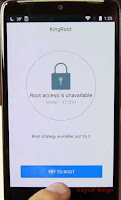
    try to root - Unlock Bootloader Motorola Droid Turbo
    try to root - Unlock Bootloader Motorola Droid Turbo
  4. Waiting for root process until finish, if failed you can try again.
    root process - Unlock Bootloader Motorola Droid Turbo
    root process - Unlock Bootloader Motorola Droid Turbo
  5. When process is finished, you can see root successfully message on Motorola Droid Turbo screen.

Verify Root Status on Motorola Droid Turbo.

  1. Download and install root checker from Google Play Store.
  2. Now, you must see root checker apps icon appear on screen.
  3. root checker - Unlock Bootloader Motorola Droid Turbo
    root checker - Unlock Bootloader Motorola Droid Turbo
  4. Run this Apps
  5. Now, tap on the Verify Root Status
  6. If your device successfully rooted, you will see "congratulation ! Root access is properly installed on this device!" message on screen
    root checker - Unlock Bootloader Motorola Droid Turbo
    root checker - Unlock Bootloader Motorola Droid Turbo

Guide Unlock Bootloader Motorola Droid Turbo.

  1. Turn on your Motorola Droid Turbo
  2. Make sure you have enough battery capacity, at least you have 80% of battery power. otherwise you can plug in charger on it.
  3. This version requires your Motorola Droid Turbo on the Build Number 5.1 SU4TL-44 with the matching 3.10.40-perf-g90ddf4a kernel. you can Go to Setting - About Phone - Kernel version to check it.
  4. Your Motorola Droid Turbo device must be on internet coverage area, for thus use WiFi Connection for faster internet speed.
  5. Make sure your Motorola Droid Turbo device is rooted. 
  6. Now, open SunShine Apps from your Motorola Droid Turbo App drawer.
    sunshine apps - Unlock Bootloader Motorola Droid Turbo
    sunshine apps - Unlock Bootloader Motorola Droid Turbo
  7. Tap accept
  8. Then, Tap Okay 
  9. For next step, tap Continue
  10. Now, wait for testing process 
  11. If you see pop up message appear on screen, tap Allow
  12. If you Passed ! message, it's mean your device has passed the pre test, is already and ready to do the compatibility test. now you can tap continue 
  13. On this testing SunShine will determine if can unlock/s-off your phone. Sometimes this can take a several minutes.
  14. If your device is passed the compatibility test, you will see Compatible ! message on your screen.
  15. On this screen you will see three options, exit, code, buy
  16. Because SunShine is not free Apps, you must buy this apps first.
  17. Or you can input code to unlock this license.
  18. If you success input code, you will be able to continue using this apps
  19. Now, SunShine will unlocking your device , afterwards the Motorola Droid Turbo device will reboot and be unlocked.
  20. After finish you will see the message "Warning Bootloader Unlocked"
  21. Finish
  22. If your device get stuck for more than five (5) minutes on the test, you can turn on the phone off, then check bootloader is unlocked.
  23. If it is not unlocked, you can try this guide again .

الاثنين، 25 ديسمبر 2017

How To Unlock Bootloader On Android Motorola Device [Guide]

How To Unlock Bootloader On Android Motorola Device [Guide].

Unlock Bootloader Motorola Smartphone. On this guide guidebelajar will share to you how to unlock bootloader on android motorolla smartphone. By unlocking bootloader on the Motorola device it's possible to install new custom ROM like ClockworkMod (CWM) or TWRP recovery on Motorola device. When you install custom recovery you will be able to root your Motorola device. This is not recommend task to unlock boot loader for a basic user, because when your Motorola device is unlocking will erase everything on your phone. (data, musics, Photos, videos, sms, and contacts). So, you must backup all data, and you will lost any guarantee too.

Not every Motorola device support Unlock bootloader, so you must check your device before perform it. The other device you need is a computer or PC, for those we can use Windows or Linux operating system.

Unlock Bootloader On Android Motorola.

Now, follow this guide step by step carefully to unlock bootloader on Motorola devices..
  1. Make sure you've Download and Install the Android SDK, Here 
  2. http://developer.android.com/sdk/index.html
  3. Then, Install the latest Motorola USB Drivers on your computer, Here 
  4. https://motorola-global-portal.custhelp.com/app/answers/detail/a_id/88481

Get Motorola Device ID.

It's easy to get your motorola ID, This ID used for unlock Motorola device via official Motorolla website. Now follow this guide step by step :
  1. Put your Motorola device in fastboot mode.
  2. To enter your Motorola device to fastbootmode, Turn Off your Motorola device then press and hold Volume Down and Power buttons simultaneously for about 5 seconds.
  3. Unlock Bootloader On Android Motorola Device
    Unlock Bootloader On Android Motorola Device
  4. Release all button when your Motorola enter fastboot mode, 
  5. On this screen you will see that your device status is locked.
    motorla device status is locked
    motorla device status is locked
  6. Then, Connect a micro-USB cable from your Motorola device to your computer. Make sure you have successfully install Motorola driver on your computer. 
  7. Now, Go to your PC or computer, 
  8. For Mac OSX or Linux user you don't need to install USB Drivers, it's already installed when you connect Motorola device on computer.
  9. For windows user make sure you have check "Motorola ADB Interface” belong to Device Manager.
  10. Then, open a command prompt or terminal, and you can go to the directory where you installed the Android SDK tools (or make sure fastboot is in your $PATH)
  11. Now type this command at the prompt :
    • For windows :
      • type : fastboot oem get_unlock_data
    • For Mac OS:
      • type : chmod 755 *./fastboot-mac oem get_unlock_data
    • Fro Linux
      • type : chmod 755 *sudo ./fastboot-linux oem get_unlock_data
  12. When you press enter, you should see the result like picture shown below on your computer screen. 
    • On windows computer should appear like this :
      Unlock Bootloader On Android Motorola
      windows - Unlock Bootloader On Android Motorola
      • On Mac OS computer should appear like this :
        mac os - Unlock Bootloader On Android Motorola
        mac os - Unlock Bootloader On Android Motorola
      • Then you can copy and paste that string (the 5 lines of output without (bootloader) or ‘INFO’ or white spaces) onto notepad or the other text editor program.
      • The returned string (number and letter) will be used to retrieve your unlock key.
      • Now, your string need to look like picture shown below. 
        • 0A40040192024205#4C4D355631323030373731363031303332323239#BD008A672BA4746C2CE02328A2AC0C39F951A3E5#1F532800020000000000000000000000
      • Now, Go to Motorola Bootloader Unlocking website. 
      • To use this website you must sign up for an account or you can also sign in with your Google account.
      • When you successfully enter this website, scroll down page untill you see the form to input your string.
        Can my device be unlocked
        Can my device be unlocked
      • Then click "Can my device be unlocked"
      • If your Motorola device is unlockable, a "REQUEST UNLOCK KEY"  you will see see button appear at the bottom of this page. It's mean your Motorola device is unlockable or not.
      • If your Motorola device not support unlock bootloader you will see pop up message that tell you if your device does not qualify for bootloader unlocking.
        pop up message unsuported bootloader unlocking
        pop up message unsuported bootloader unlocking

      Request Motorola Unlock Key.

      If you want get your unlock key you must read the following agreement and accept the terms on this website page.
      1. Still on this Motorola Bootloader Unlocking website.
      2. Scroll down website page untill you see agreement radio button, and you should select agree
        agreement - Unlock Bootloader On Android Motorola
        agreement - Unlock Bootloader On Android Motorola
      3. If your Motorola device is unlockable, a blue “Request Unlock Key” button appear at bottom. 
      4. Just click on it!
      5. Then, Check your e-mail inbox, you will get the email similar like this picture.
        Unlock Bootloader On Android Motorola Device
        Unlock Bootloader On Android Motorola Device
      6. Then, open a command prompt or terminal, and you can go to the directory where you installed the Android SDK tools (or make sure fastboot is in your $PATH)
        Unlock Bootloader On Android Motorola Device
        • For Windows Type : fastboot oem unlock PasteYourUnlockCodeHERE
        • For MacOS type : ./fastboot-mac oem unlock PasteYourUnlockCodeHERE
        • For Linux Type : sudo ./fastboot-linux oem unlock PasteYourUnlockCodeHERE
      7. After you type the command, now confirm it with enter
      8. Now, go to your Motorola phone, and you should see unlock message on screen.
        Unlock Bootloader On Android Motorola Device
        Unlock Bootloader On Android Motorola Device
      9. It's mean you’ve successfully unlocked your bootloader on motorola device!
      10. Your Motorola should reboot now
      11. And feel like a new smartphone is like the day you bought it, but with bootloader unlocked!